Formestry

Cli.nt

A remote CLI app that connects you to your PC or Mac from any device. Chat with Claude Code through a clean interface — no SSH tunnels, no port forwarding, no setup headaches.

Desktop CLI, mobile freedom

Access your full development environment from your iPhone or iPad. Your code stays on your machine while you work from anywhere — whether you're on your local network or connecting remotely.

Claude Code, beautifully native

Chat with Claude Code through an interface designed for mobile. See suggestions, approve changes, and iterate on your code — all in a clean, touch-optimized experience with real-time streaming responses.
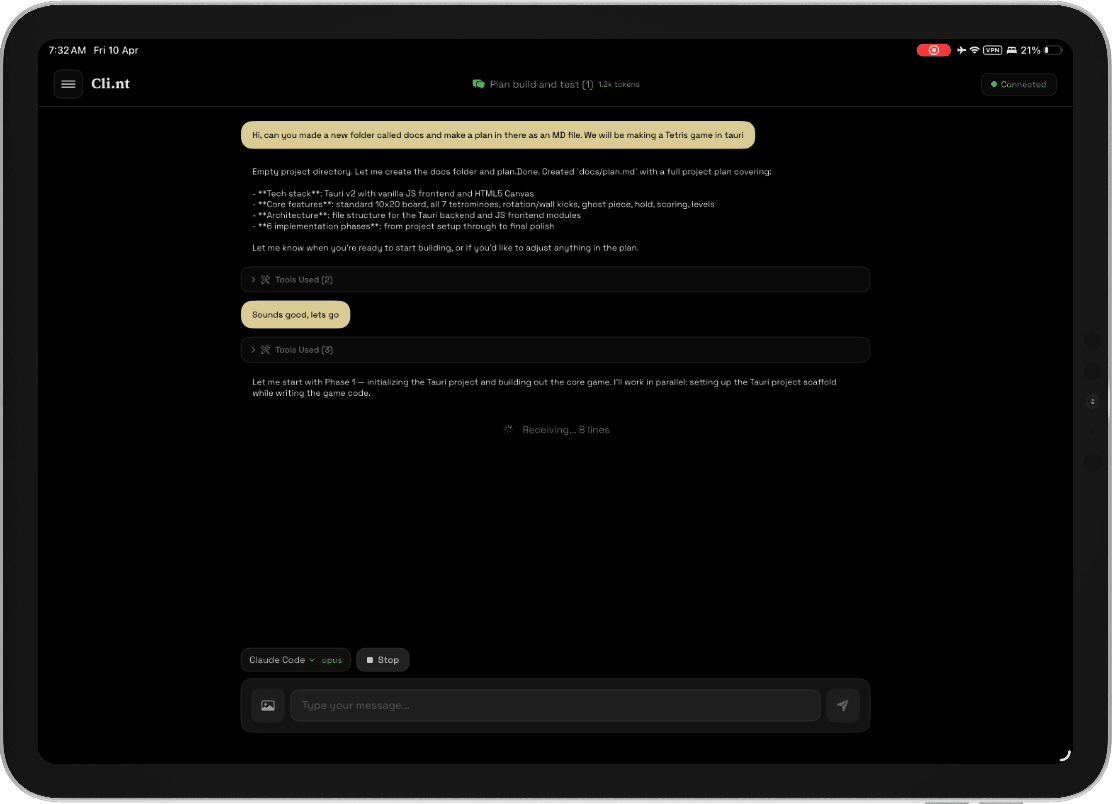
Granular approval workflows

Review every file edit, command, and tool call before it runs. Choose "Allow" for one-time actions or "Always Allow" to speed up trusted operations. Need to move fast? Autonomous mode lets you disable approvals entirely (best used with sandbox mode).
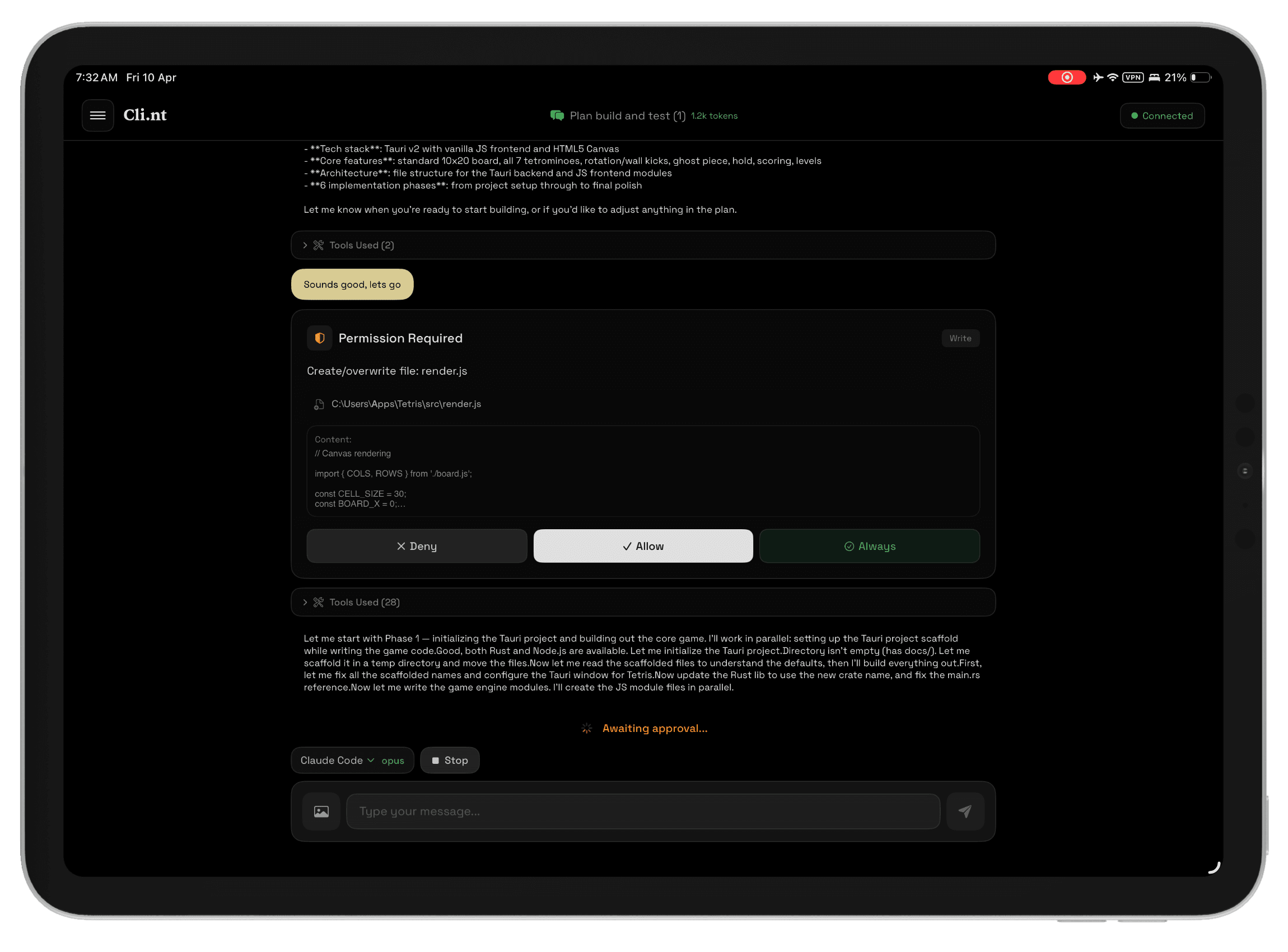
Sandbox protection

Keep your system safe with per-session project folders. Sandbox mode restricts Claude Code to only the files in your working directory — no traversals, no surprises. Especially useful for untrusted code or experimental sessions.

Session-based context

Each project gets its own conversation thread with persistent context. Switch between multiple codebases without losing your place. Session headers show token usage and message count so you know when to start fresh.

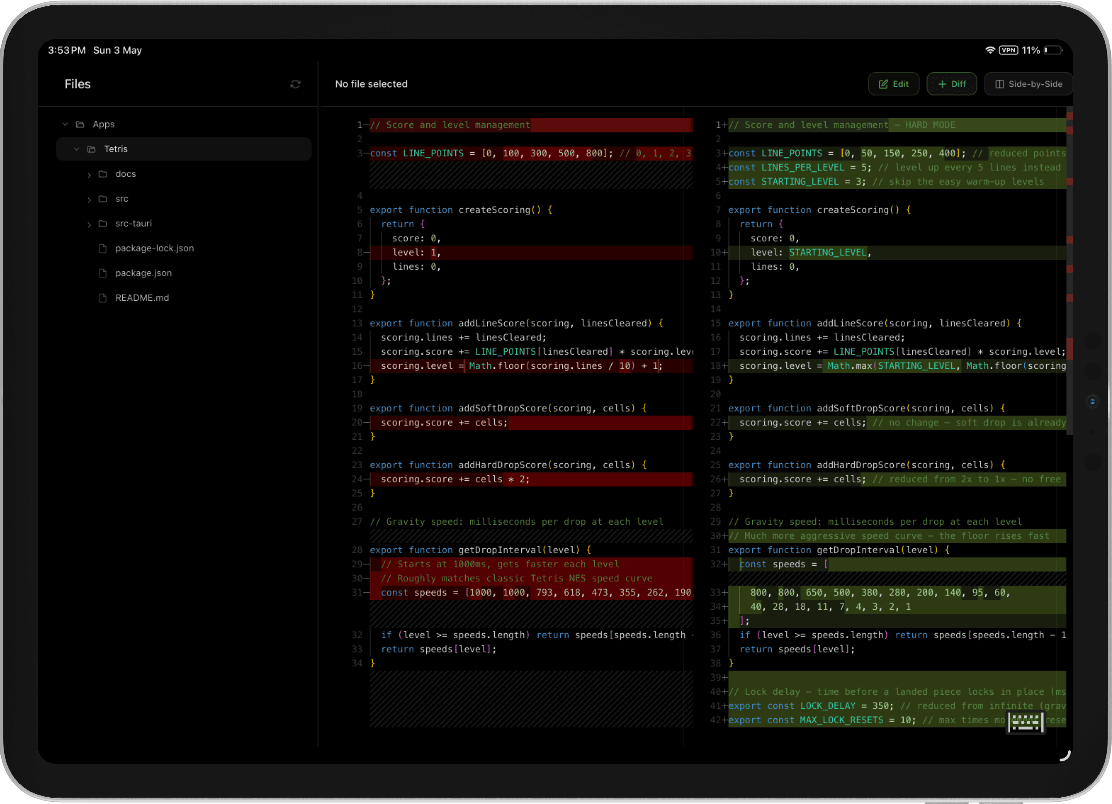
Built-in localhost preview & editor

View your running apps and edit code directly in the interface. Set your preview URL in settings and jump straight to your local development server.
Secure by default

End-to-end encrypted connections with password protection and biometric lock support. All sessions are secured over WebSocket with TLS. Audit logs track every command for audit trails (7-day, 30-day, or disabled retention).

Works where you work

Full support for Windows and macOS. One app, all your machines. Auto-connect on launch, prevent sleep during long tasks, and restore from dimmed screen with a tap.
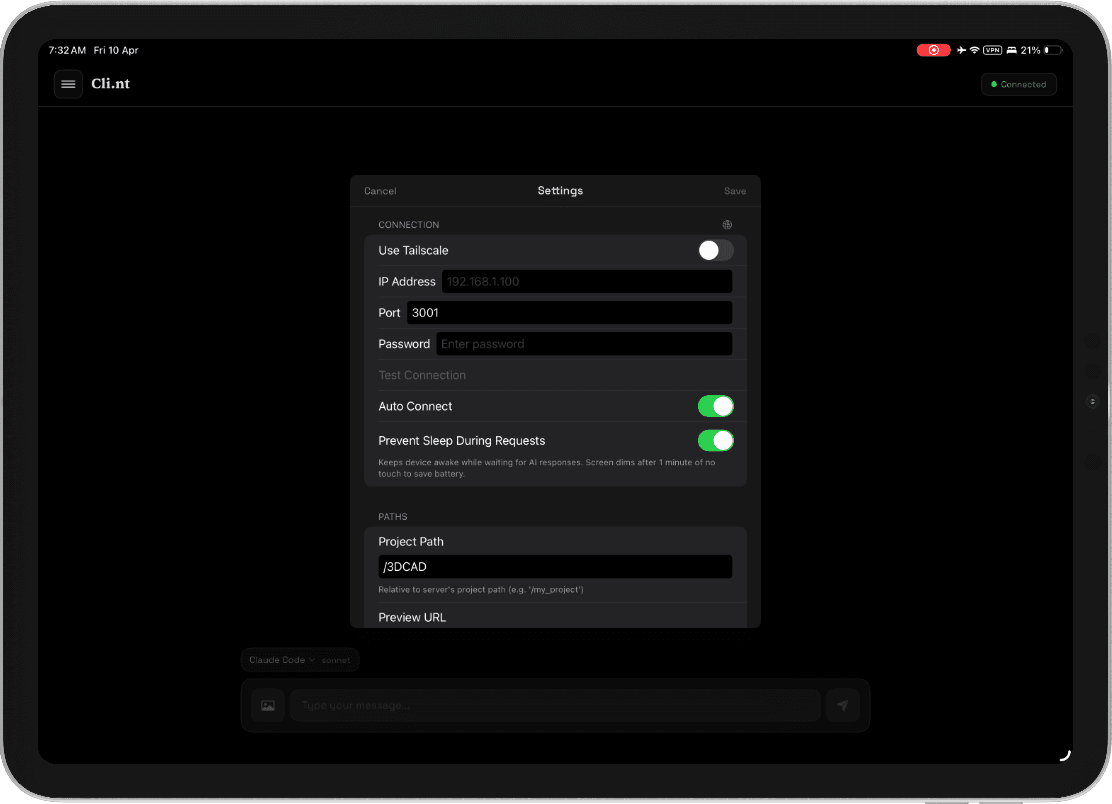
Cli.nt on iPadCli.nt on iPhone

How It Works

  1. 1. Run the server on your desktop (port 3001)
  2. 2. Set a password in the desktop app's Security settings
  3. 3. Connect from iOS using your desktop's IP or Tailscale hostname
  4. 4. Chat with Claude Code and approve changes as they happen